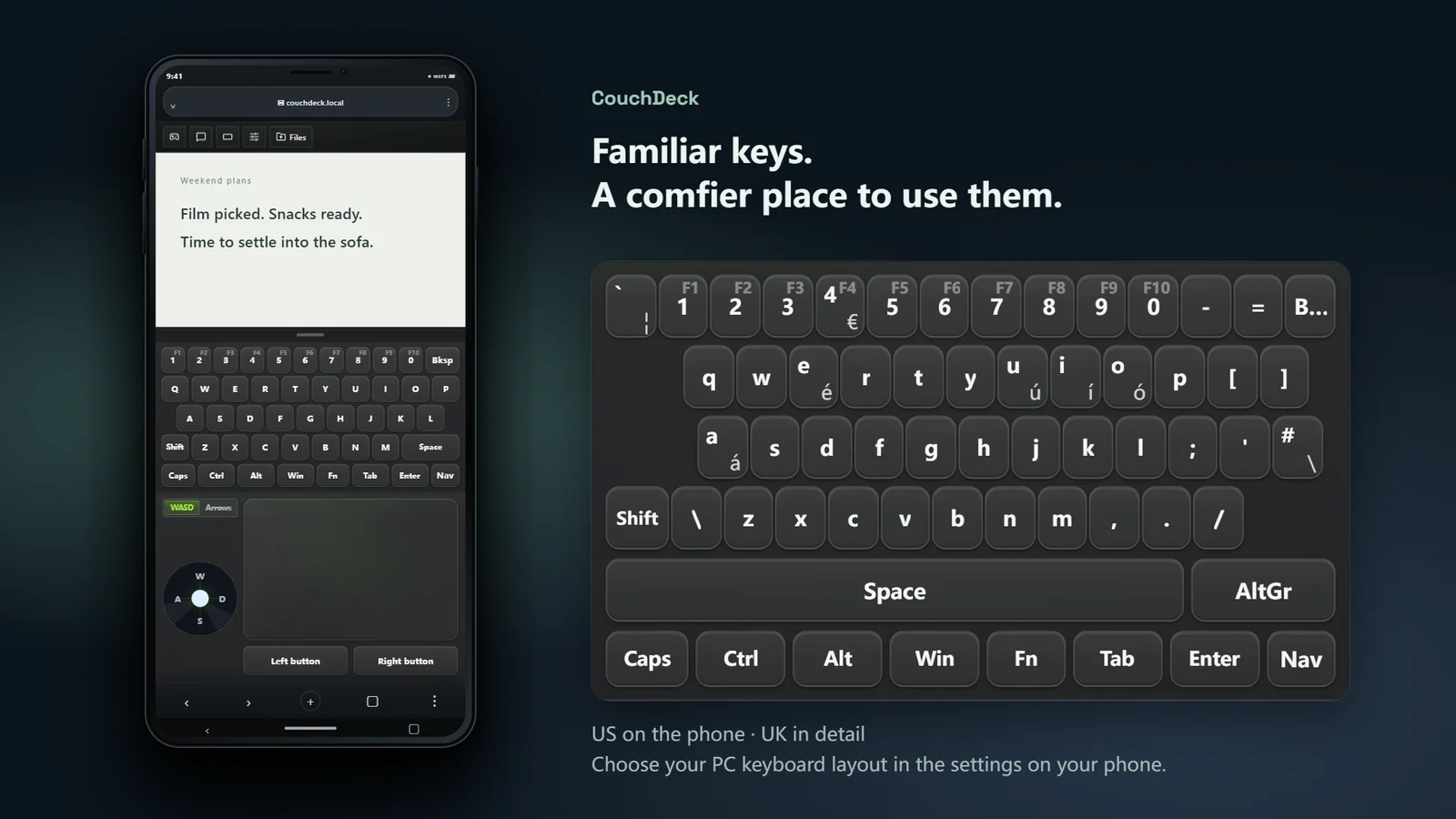
Thanks for stopping by! A familiar keyboard is part of feeling at home, even when you’re nowhere near your desk. CouchDeck offers both US and UK layouts, so symbols like £, @ and quotation marks can stay where you expect them. Your usual shortcuts come along too. Settle into the sofa without having to relearn your keys, meow.
On your phone, open CouchDeck’s settings and choose “US (101/102)” or “English (United Kingdom)” under “PC keyboard layout”, to match the layout you use in Windows.
Don’t feel like leaving the sofa? Then don’t, meow
Your PC is still over at the desk, but you are already curled up on the sofa, in bed, or in your favourite chair?
CouchDeck streams your home Windows PC to a phone browser and turns the phone into a keyboard, touchpad, and virtual gamepad. There is no separate mobile app to install—and no need to get back up just to click the mouse twice, meow.
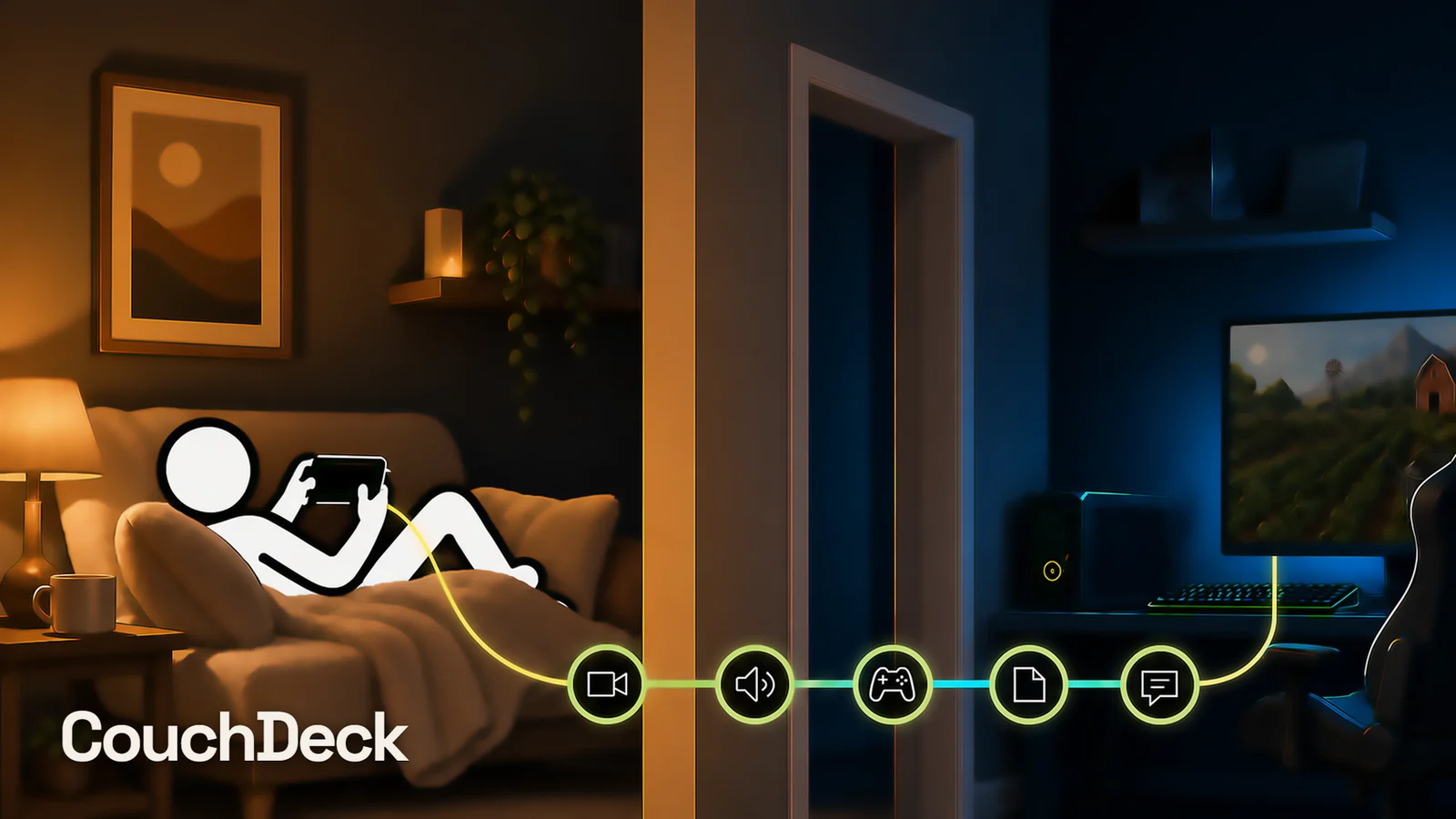
Check the desktop, open a program, press a shortcut, move the mouse, or play for a while with your phone as a gamepad—all from the same page. Choose Pro and you can also pass text and files back and forth without climbing out of bed for one photo. CouchDeck has one simple goal: helping you get a little more comfortable, meow.
One scan, then settle in
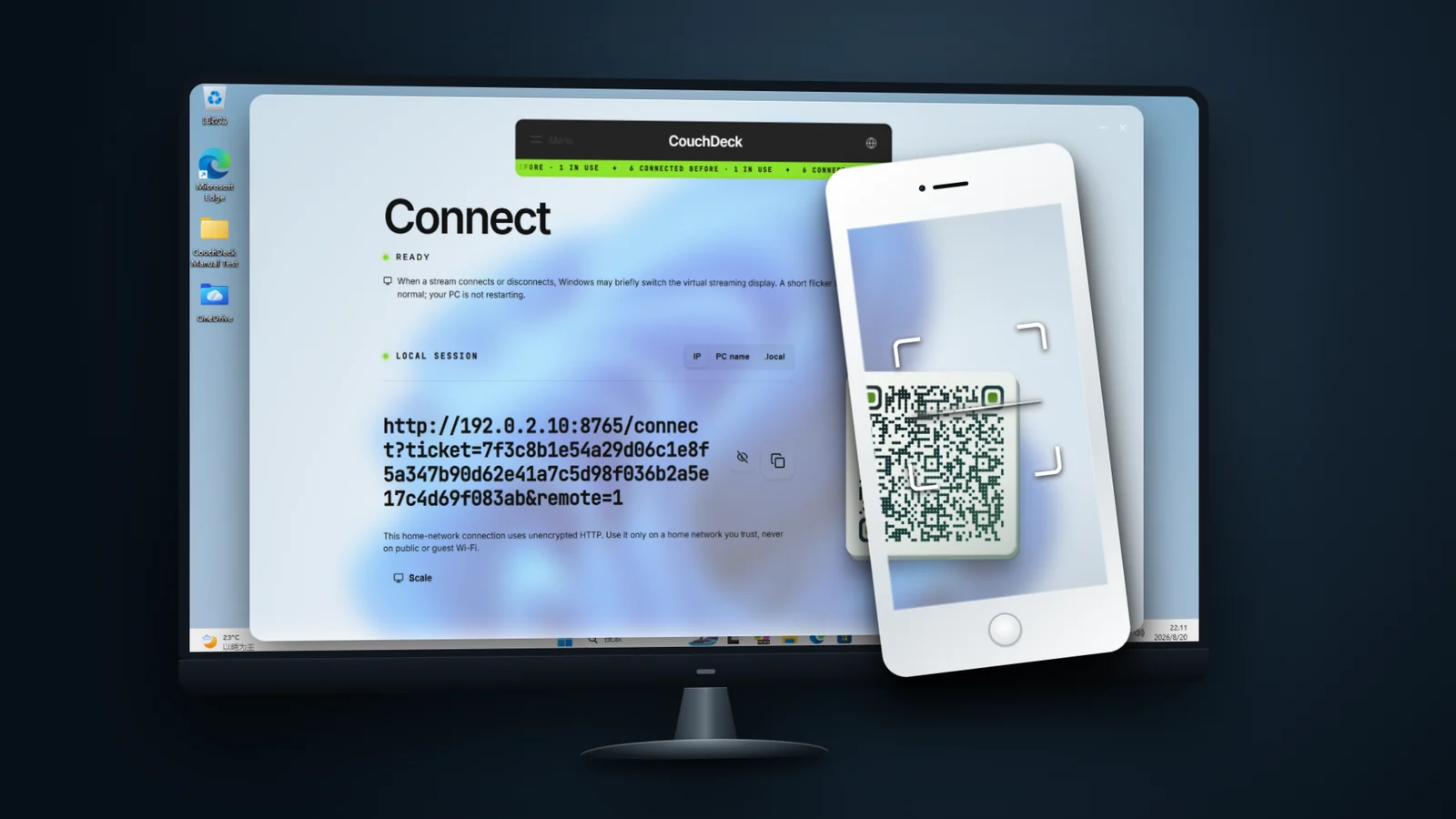
Scan once. Next time, just reopen the same page. Your phone browser remembers the PC. As long as the PC is on, CouchDeck’s services are running and the address hasn’t changed, there’s no need to walk back and scan again, meow. You can also open the connection address directly.
Windows still waiting for a password? A phone that already remembers the PC can connect and let you sign in.
At home, choose an IP address, Windows PC name or .local address. An IP assigned by DHCP can change after a router restart, network change or reassignment. Connecting by PC name gives you an alternative to setting a fixed IP. Names and .local depend on your devices and network; if a VPN, guest Wi-Fi or device isolation gets in the way, you can still use the PC’s current IP.
Portrait or landscape, with room for both hands
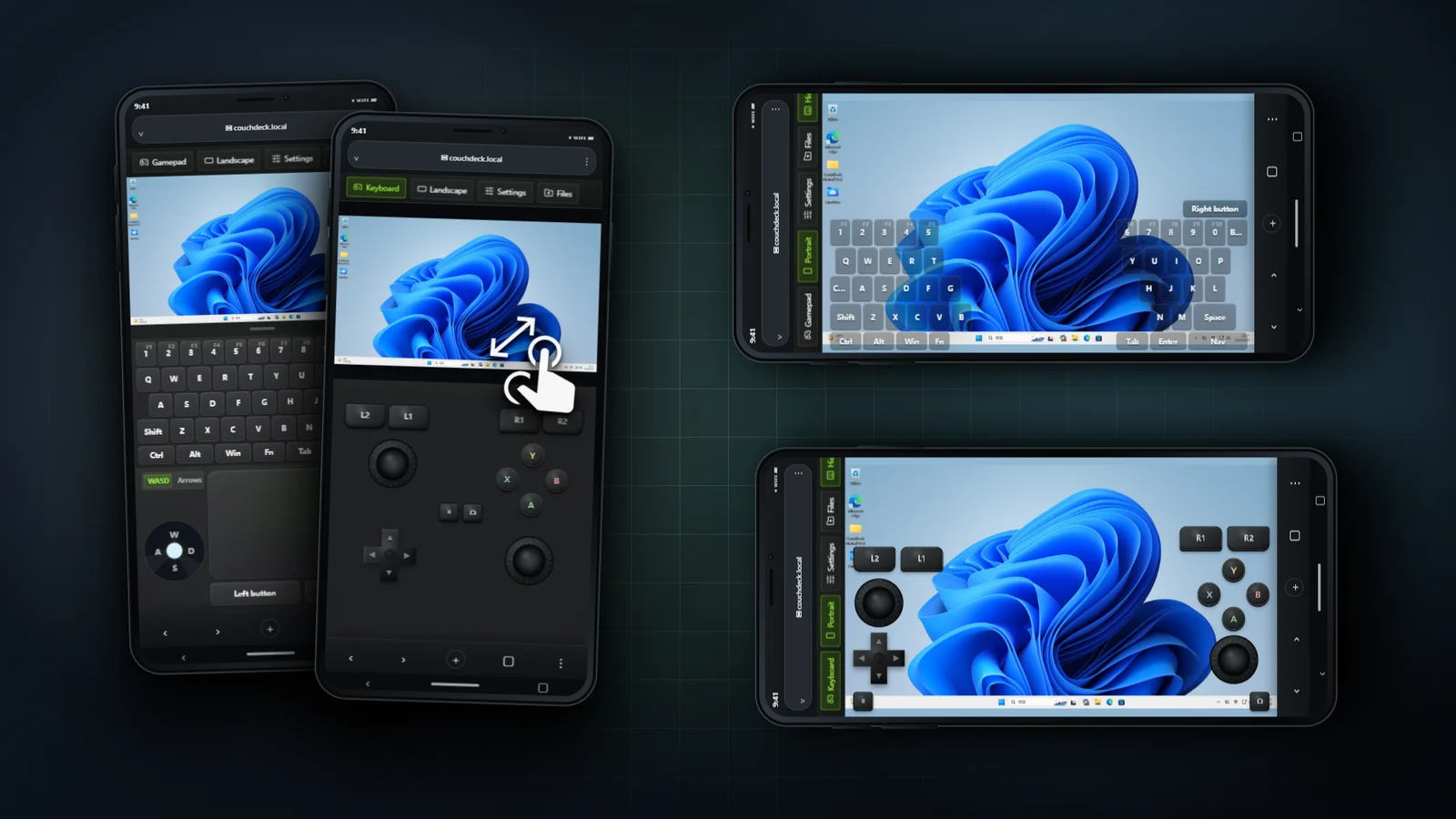
In portrait, the picture, keyboard, touchpad and directional stick are all within reach. Turn sideways and the keyboard or gamepad sits under each hand, leaving the centre for your PC. Even the gaps between keys let you interact with the picture, meow.
More than Ctrl+C and Ctrl+V: three-key shortcuts work too. Send combinations such as Ctrl+Shift+S, with every section of a standard full-size US keyboard covered: letters, numbers, punctuation, function keys, editing and arrow keys, and the numeric keypad. Left and right Ctrl, Shift and Alt keys with the same function share one phone key.
Move the pointer, click, scroll, or drag windows and files with the touchpad. Window too small? Maximise it with one tap and restore it with another. You can also bring all minimised windows back at once—less fiddly aiming on a small screen, meow.
Write longer text with your familiar phone keyboard
Rather not type every character on the remote keyboard? Use your phone’s own input method, including Chinese, Japanese, Korean or your usual voice typing. Write across multiple lines, expand the draft to check it, then send it to the PC in one go. Enter adds a line, not an accidental send, meow.
A stick for games, a wheel for browsing
In settings, swap the WASD / arrow-key sticks for a mouse wheel, middle click and X1 / X2 side buttons. Choose what suits the task.
Hold a stick for continuous game input, or choose one step per push for menus and window switching. Return to the centre before the next step—no need to time your touch just right, meow.
Small phones needn’t feel cramped, and tablet controls needn’t be out of reach. In portrait, adjust keyboard and touchpad height separately. Each phone remembers its own sizes, so make yourself comfortable, meow.
You can touch the PC picture directly, too. Double-tap for a left click, hold for a right click, or tap then hold to drag. Two fingers zoom and pan. It works in portrait and landscape, and changing orientation brings the full picture back, meow.
More than one PC screen? Choose one from the sofa
All these display features are included in both CouchDeck and CouchDeck Pro, meow.
Window on another monitor? Switch to it from your phone. CouchDeck starts with the main display; choose another in phone settings. If that screen disconnects, it returns to an available main display. Connected phones share the same selected screen and receive a notice when it changes, meow.
Portrait, ultrawide and nearly square monitors keep their original proportions. Text too small? Adjust Windows display scaling for the selected physical monitor from your phone to enlarge the PC’s text and buttons together.
No monitor attached? Your phone can still have a desktop. Enable a virtual display in advance and remember the connection address. After a PC restart, reconnect once the services are ready, without keeping a physical monitor attached. This needs compatible Windows, graphics hardware and drivers, so try it on your own PC before unplugging the screen, meow.
A gamepad layout and feel that fit your hands
Friends over, one controller short? A phone can fill in. The PC recognises each phone as a separate virtual gamepad, so everyone can join in games that support local multiplayer, meow.
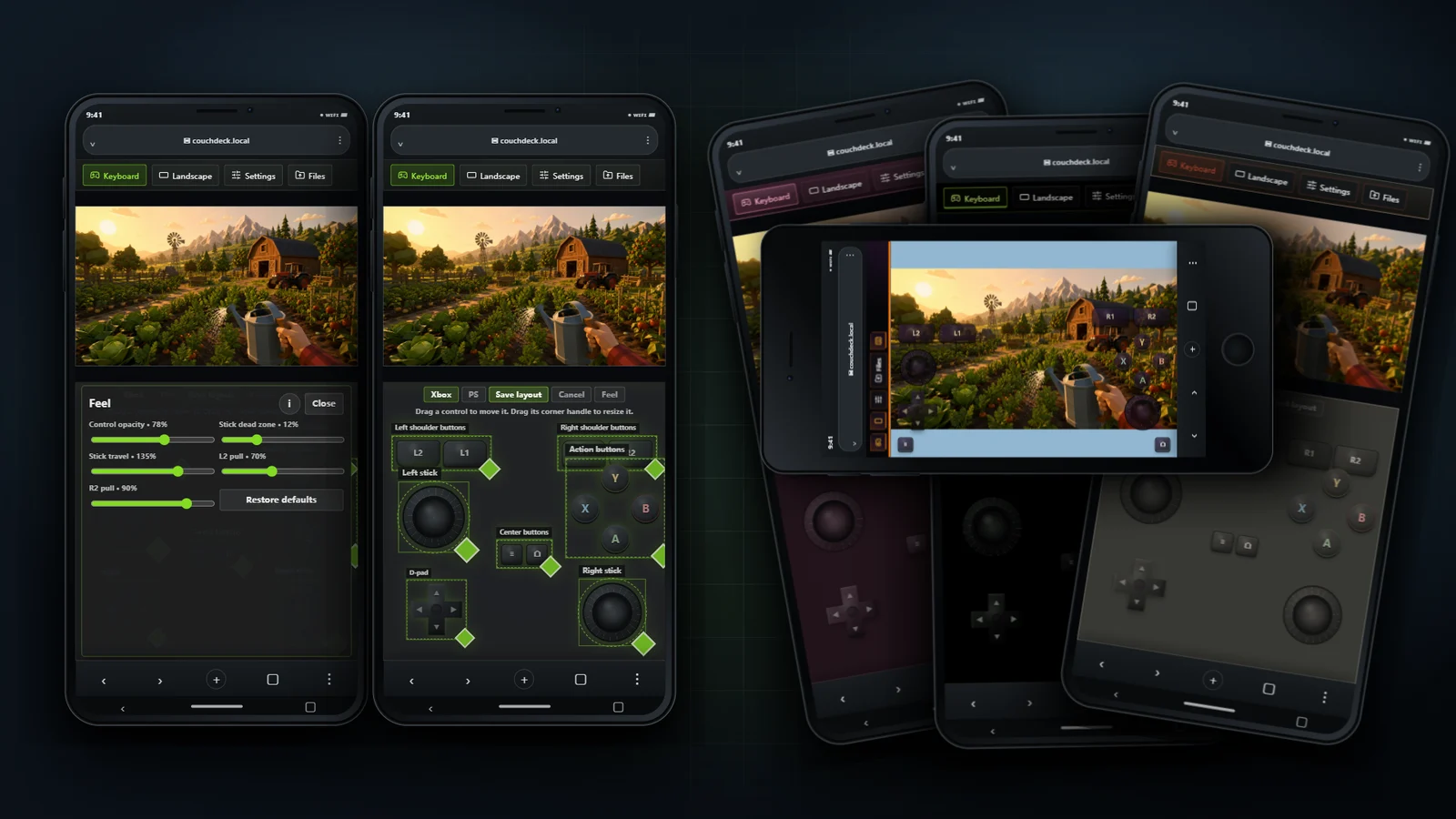
An Xbox layout is included by default, with landscape buttons and sticks close to each hand and a quick switch back to the keyboard. Double-tap a stick for L3 / R3; hold L2 / R2 and slide up or down to vary trigger pressure.
Pro adds a PS layout, adjustable control placement and custom feel settings. Move and resize buttons, shoulder buttons and triggers independently, and tune opacity, stick dead zones, travel range and default trigger strength. Each phone saves its own setup—no need to borrow someone else’s hands.
Want to ease onto the throttle, not floor it on first touch? Pro’s progressive triggers start at zero: slide up to add pressure, down to reduce it, and release to return to zero. Set L2 and R2 separately, or keep the normal button mode. Whatever feels right, meow.
Fewer restrictions, more convenience
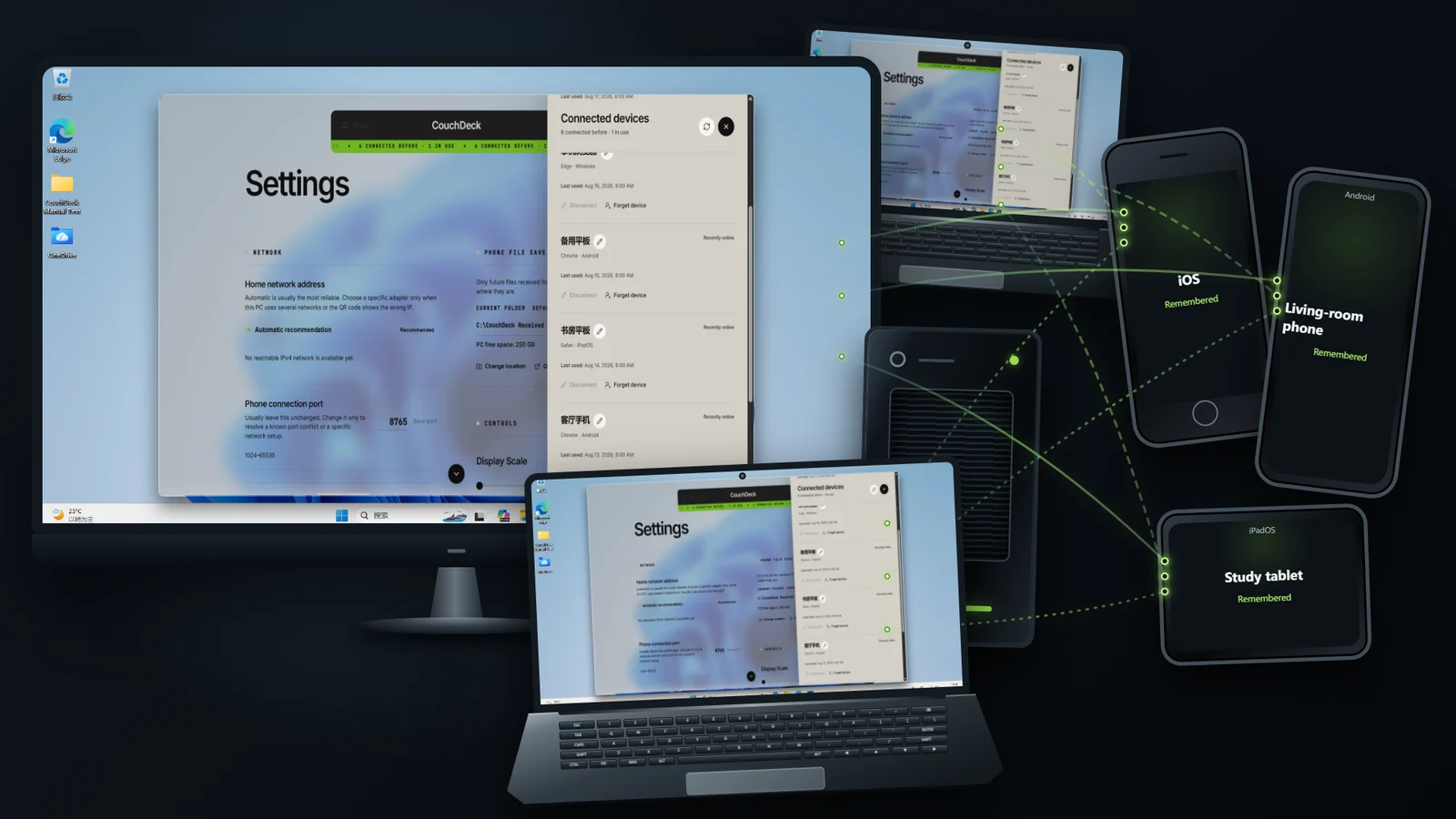
No new account, no hardware binding, no Steam required. Once installed, CouchDeck is ready for everyday use across the PCs, phones and tablets at home, meow.
Each PC can show previously connected devices and remove access for one device without clearing everyone else’s connection.
Extra features in Pro
Phone to PC and back—without cables or cloud-drive detours
Need a PC file on your phone, or a batch of phone photos on your PC? No detour through a social platform’s servers, no cloud-drive speed limit, and no getting up to hunt for a cable.
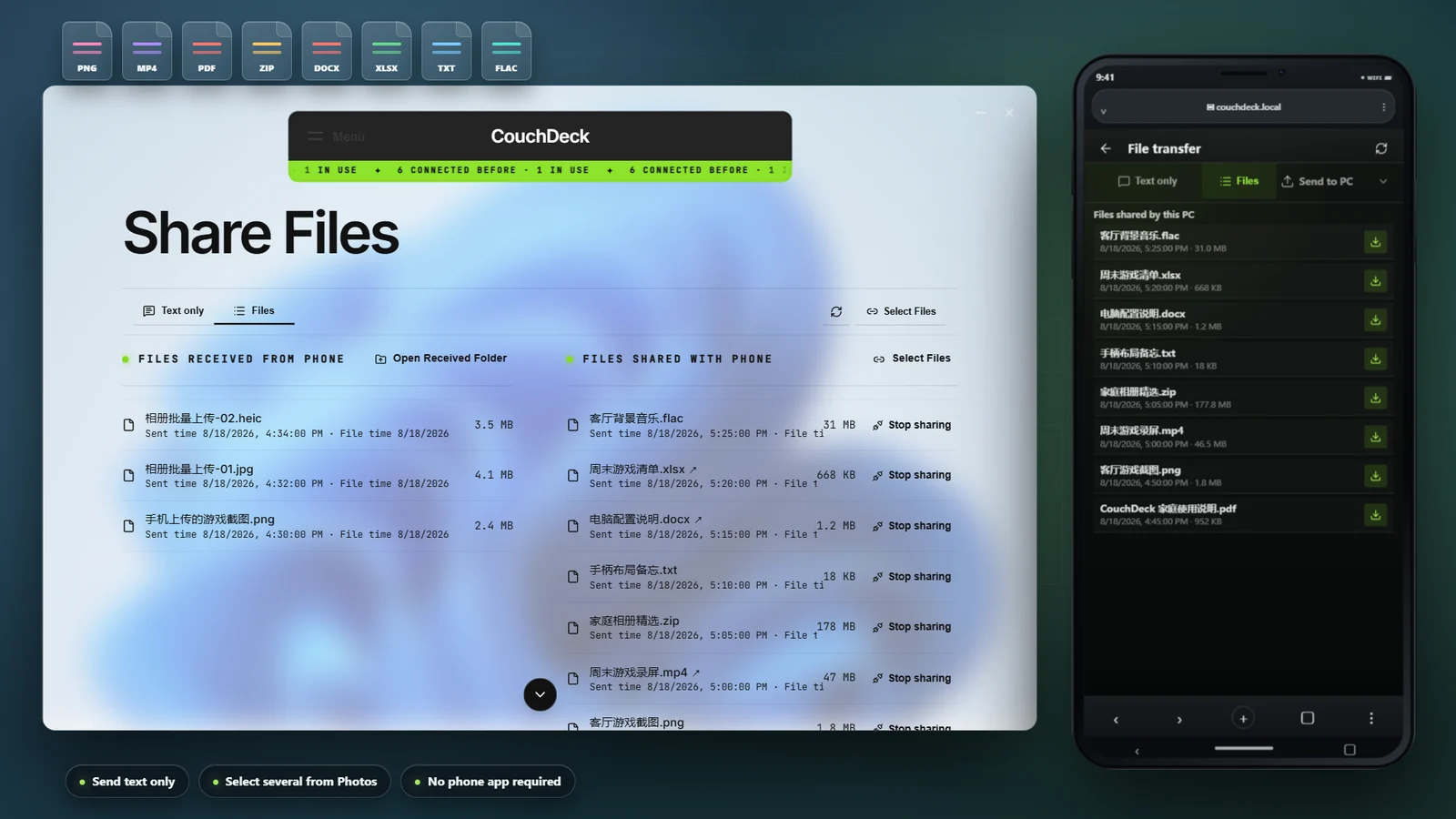
Batch transfers aren’t just for photos. Select several pictures or videos from your gallery, or documents and archives from your file picker. Plain text doesn’t need saving as a file first, either.
Send it to the PC, edit it, bring it back. Download files shared by the PC, or recently uploaded through CouchDeck and still in the current receiving folder, from the phone’s file list. Keep the same location and filename to download the edited version without sharing it again. You can also open the PC’s receiving folder with one tap from your phone, meow.
Your phone and PC can exchange clipboard content, too. Send phone text to the PC clipboard or bring copied PC text back to the phone. PC screenshots, copied files and files just uploaded from your phone can also be downloaded or pasted, with less hunting through folders, meow.
Just transferring files? You don’t need the desktop stream. Choose “Files only” when connecting, or pause this phone’s video and audio to leave more bandwidth for files. Supported browsers can also resume interrupted large downloads.
Away from home? Your PC can still be within reach, meow
Need a document you left at home, or want to check whether a PC task has finished? Pro’s experimental away-from-home connection takes remote control, text and file transfers beyond your home Wi-Fi.
No dedicated public IPv4 address? You may not need to rent a server. Enable automatic direct connection and CouchDeck tries router port mapping. Where the network allows, STUN / NATMap can also establish a direct path through your provider’s NAT. Video and files then travel straight to your own devices, not through a CouchDeck relay server, with no relay-traffic purchase needed for that direct route, meow.
Once configured, you get a separate away-from-home QR code and address. Connect once before leaving and keep the page. While the PC and services are running and the address hasn’t changed, reopen it to carry on—no trip home to scan again.
Network setup is required; out-of-the-box access isn’t guaranteed. Provider NAT, inbound restrictions and multiple router layers affect connectivity. You may need to configure port forwarding on your router or upstream modem/ONT. A changed public IP or port also means updating the address. Setup PDFs are included, but no connection method works on every network.
Prefer a fixed domain and HTTPS entry point? Host or choose your own public HTTPS forwarding service. CouchDeck neither binds you to nor recommends a provider; third-party services may charge separately. Try direct WebRTC media, or explicitly choose to carry streaming through the forwarding service. The ordinary automatic direct-access entry uses HTTP, not an HTTPS-encrypted channel.
Where are the guides? Open guides/public-access inside your CouchDeck installation folder on Windows. In CouchDeck Pro on the PC, you can also open Settings → Outside connection → Open setup guides. Choose a PDF with Direct-Access in its name for automatic direct access, or Public-Remote-Control for HTTPS forwarding. English editions end in en-US.pdf, meow.
Quickly open CMD or PowerShell from your phone
Pro’s exclusive quick terminal opens CMD or PowerShell on the PC with one tap—no hunting through menus on a tiny streamed desktop, meow.
Send individual keys and Ctrl+C / Ctrl+Z, or prepare several lines of commands to run together. Commands stay in the same session, keeping your working directory and environment. The terminal view and text size adjust automatically for easier reading on your phone.
Enable it in phone settings, then open CMD or PowerShell from Nav, meow.
A useful tool does not have to look dated or dull
Pro includes four extra themes—Sakura Paws, OLED Black, Paper & Ink, and Deep Observation—with animated details and little effects you can actually poke.
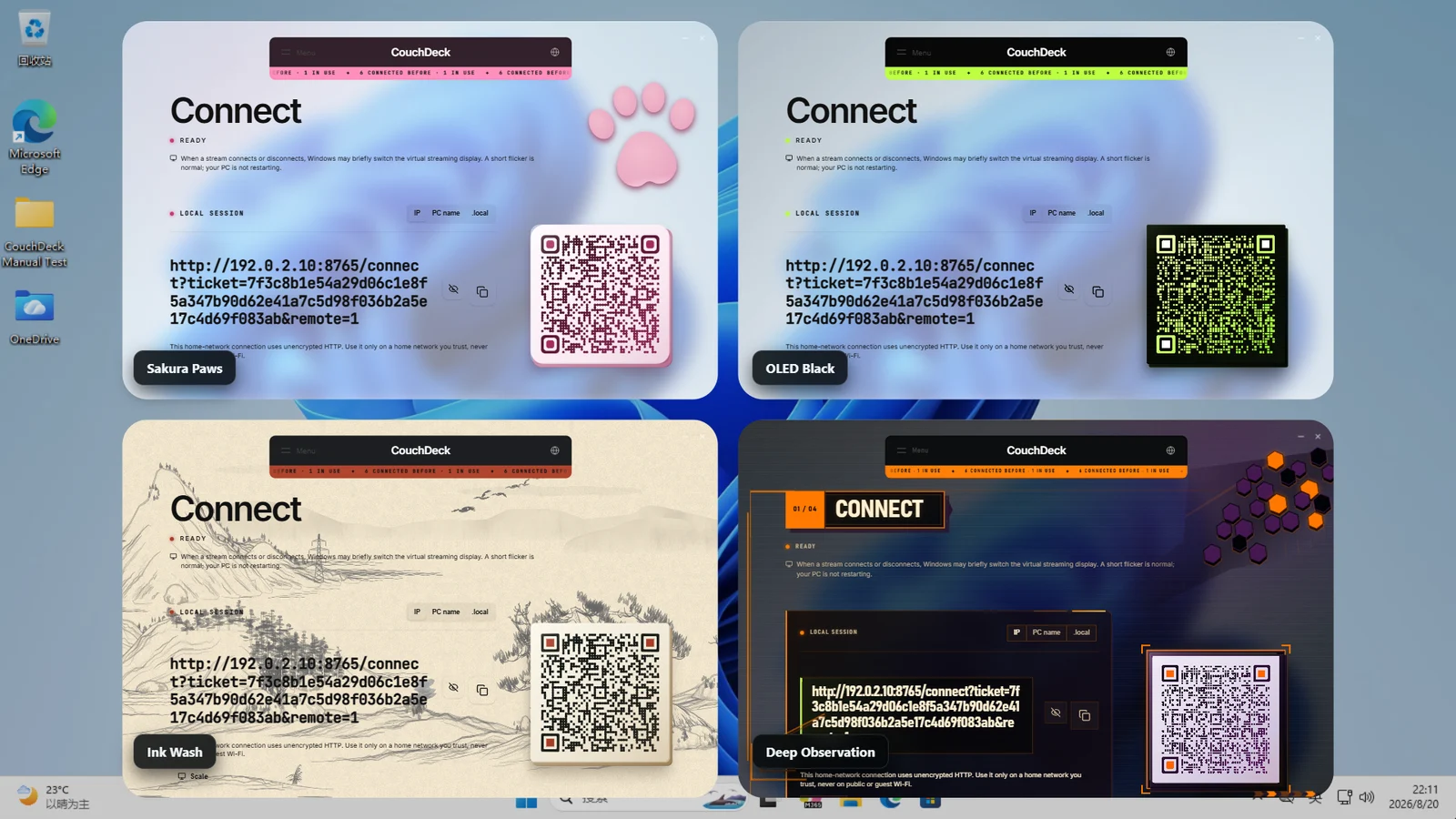
Squishing a cat paw may improve your mood, meow~ (Yes, you really can squish it.)
Compatibility and languages
CouchDeck is designed for x64 Windows 10 and Windows 11. We recommend Windows 10 version 1809 or later as your starting point. LTSC 2019, Windows 10 22H2, and representative Windows 11 systems in Chinese and English have been tested in separate environments, meow.
Desktop streaming, keyboard and mouse input, virtual gamepads, and file transfers have also been tested on the earlier Windows 10 versions 1607, 1703, 1709, and 1803, so you are welcome to try them. However, older systems and drivers can still limit individual features, and full functionality is not guaranteed. For example, virtual displays are unavailable on 1607, 1703, and 1709. Versions earlier than Windows 10 1607 are not currently supported; please upgrade before using CouchDeck, meow.
Windows 11 support covers standard x64 production releases from 21H2 through 25H2; 26H1 still needs further verification. ARM editions, preview builds, and heavily stripped-down systems are outside the scope of full support. Graphics hardware, drivers, and system policies may also affect individual features. Supporting Windows 11 does not mean that every patch release and every hardware combination has been fully tested.
The interface supports ten languages: Simplified Chinese, Traditional Chinese, English, Japanese, Korean, Russian, Spanish, German, French, and Brazilian Portuguese. The mobile side supports Safari and mainstream Android browsers.
If something fails in an unusual PC environment, or your use case goes beyond what CouchDeck was originally designed around, please email the developer with your proof of purchase, diagnostic details, your experience, and the behaviour you hoped for within CouchDeck’s intended scope.
Your feedback will be read carefully and possible solutions will be properly considered, meow!
A few useful details
- CouchDeck is made for x64 Windows 10/11 PCs and modern iOS and Android phone browsers; see the compatibility section above for supported versions and limitations.
- CouchDeck is for home entertainment, light office use and remote control between trusted devices—not high-security enterprise environments or professional remote support.
- When Windows is waiting at the password screen after startup or sign-out, a phone browser that already remembers this PC can still connect and use CouchDeck’s keyboard and mouse to sign in. Before sign-in, only video, audio, and input are available; after sign-in, the full CouchDeck starts quietly in the system tray and takes over.
- Steam’s controller test fully recognises the CouchDeck virtual gamepad, including buttons, sticks, and triggers. In most games with Xbox controller support, it behaves like a physical gamepad.
- CouchDeck does not require another account to verify your purchase. There are no subscriptions, feature microtransactions, or forced-update system: one purchase gives you continued use of the full feature set for that edition.
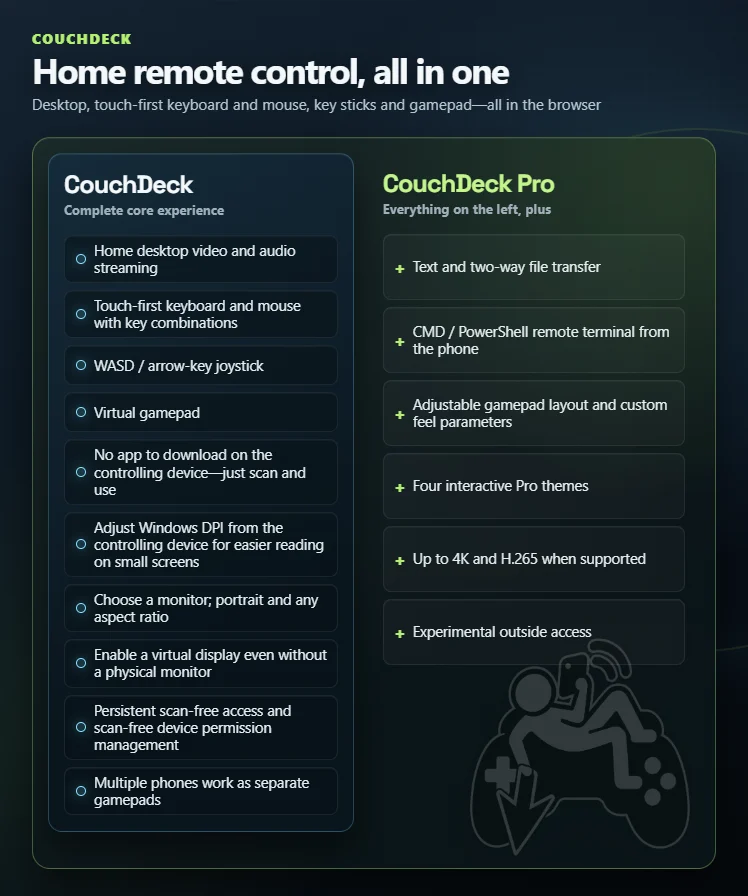
If all you want is a comfortable way to control your Windows PC at home, CouchDeck already gives you the complete essentials. If you would also like to pass text and files during remote control, tune the gamepad layout and feel, change themes, or try higher quality settings, then have a look at Pro, meow—and thank you for the support.
Minimum system requirements
- OS: Windows 10 x64 version 1809 / build 17763 or later, or Windows 11 x64 production releases 21H2–25H2
- Processor: x64 processor with SSE3 support
- Network: A trusted private IPv4 home network where the PC and phone can reach each other
- Additional Notes: A modern iOS or Android browser; some first-time preparation and Windows repairs require administrator approval. Windows 10 1607, 1703, 1709, and 1803 are available to try with compatibility limitations. Windows 11 26H1 still needs verification; ARM editions, preview builds, and heavily stripped-down systems are outside the scope of full support. See the description for details
- Storage: 2 GB available space